Showing posts with label How to install themes on iPhone. Show all posts

Acier Theme (WinterBoard Theme)

Another awesome iPhone themes called Acier, developed by Monty, that you should never miss. It’s a spaceship-like, futuristic theme, loaded with UI and custom icons. It’ll take you some efforts to setup the theme but it just looks so cool and completely makes your iPhone stand out of the other regular iPhones. But it’ll take you some time to configure and install the themes.


NOTE: make sure you have a jailbroken iPhone and install the following applications using Cydia:
  • Winterboard – The heart of iPhone theme that lets you completely customize the look & feel of iPhone screen
  • Five icon dock – Allows you to put extra icon in the dock
  • Five column springboard – Adds extra column for iPhone home screen
  • iC Theme Essentials – Bundles essential theme applications such as iBlank, Categories
  • WeatherIcon – Displays the current weather inside iPhone icon
  • LiveClock – Provides a live clock in the iPhone icon
  • SpringJumps – Offers special icons as shortcuts to jump to different pages of Springboard directly
  • Categories - organize your icon on SpringBoard into a folder.
  • iBlank - Lets you create blank icons.

Install Acier Theme Via Cydia

1. Launch Cydia > Select “sections” at haptic menu > Select “Themes (SpringBoard)” category > and Select “Acier” or you can tap “Search” in Cydia and type “Acier” > Select “install” button at the right top and confirm it to install.

2. (Optional) If you are already using Winterboard with other themes, please unmarked it in Winterboard. This will make the following configuration process much easier.

3. Launch “Categories” and create two folders: Apps and Games. Place all your games and applications into these two folders except leaving the following application behind:


  • Phone
  • Settings
  • Contacts
  • Weather
  • iPod
  • App store
  • Cydia
  • Clock
  • Safari
  • Games
  • Apps
  • iTunes
  • Photos
  • Calendar
  • Text/messages
  • Mail
  • Maps
  • Winterboard
  • YouTube
4. Tap “iBlank” to launch it. iBlank is an application to let you create blank icons. Use it to create 52 blank icons. You can tap “13″ for four times to create a total of 52 icons.


5. Go back to home screen and launch SpringJump. Tap “General” and disable “Page Titles”. Go back and tap “Jump Icons”. Flip the switch to OFF for Page 5 – 8.


6. Place the remaining five SpringJump icons in the dock.

7. This is the most important part. Just arrange the icons like the screenshots shown below.


8. Once you complete the icon arrangement, launch “Winterboard” and enable “Acier”, as well as other options shown below:

9. Click home button to refresh the springboard and enjoy!
You have read this article Cydia Apps / Free Cydia Apps / How to install themes on iPhone / iPhone Theme (WinterBoard) / iPhone Tips / iPhone Tips and Tricks / iPhone/IPod Touch / Jailbreak iPhone / Winterboard Theme with the title How to install themes on iPhone. You can bookmark this page URL https://fivesatellites.blogspot.com/2009/12/acier-theme-winterboard-theme.html. Thanks!
10 Beautiful iPhone Themes (WinterBoard)

One of the main reasons to jailbreak your iPhone is that it allows you to add custom themes and make it stand out from the crowd of blend and boring iPhones out there. Your iPhone must already jailbroken (iPhone 2G / iPhone 3G / iPhone3GS) in order to use WinterBoard. Winterboard on iPhone (like its predecessor Summerboard for iPhone 1.1.4) is an iPhone theme manager that allows you to change any WinterBoard/SummerBoard theme on iPhone. See instruction here on how to install Winterboard.

Here's my 10 beatiful Theme:

Frame Black Theme
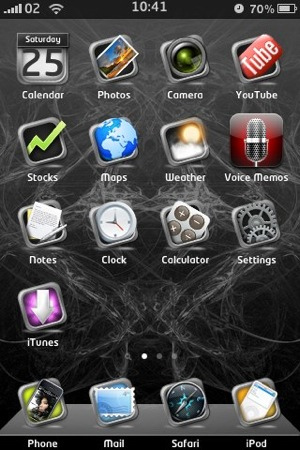
Definitely a unique theme. Each icon is framed into a really nice dark aluminum frame and placed on a beautiful wallpaper.


Monokuro Boo Theme
A Monokuro Boo theme with many icons. I think this theme is kinda cute and funny.


Andrew's Awesome Theme
This is the first theme by young iPhone addict Andrew. This theme makes me smile every time I see it


Niffob Nokta
This custom iPhone theme with knitted icons is very original. Unfortunately, it doesn’t come with many icons.


Dark BlackBerry Theme
A theme with Blackberry-like transparent, glowing icons and a nice dark background.


Etched Base Theme
This theme has a transparent base with a bevel feel to it. It includes almost 200 icons, 18 different wallpapers and more.


Maniac Theme
An original iPhone theme with very large icons. That’s my favorite theme these days and it’s currently installed on my iPhone. It comes with quite a few icons.


AF future Theme
A simple futuristic theme with neon lights icons.


Brown Bag Theme
A rough-looking theme based on a brown paper bag. I think it’s not that beautiful, but it’s a very original theme.

A Rusty iPhone Theme
Want a little rust in your iLife? Get it with this beautiful theme that will probably make your friends go “wow”. This theme is available in the Cydia Store for $1.49.


Activate "Your iPhone Theme" Via WinterBoard


Your iPhone Theme is still in the “unactive” condition. That's why your still can't see any changes to your theme on SpringBoard. To activate it, just launch Winterboard. Select “Downloaded Theme (example: Monokuro Boo)”. Your WinterBoard will verify with mark symbol. Press "Home" button and you’ll then bring back to the locked screen. Unlock it and you’ll see a fresh new look of your iPhone. Enjoy!
You have read this article Cydia Apps / Free Cydia Apps / How to install themes on iPhone / Install Winterboard on iPhone / iPhone OS 3.0 / iPhone Tips / iPhone Tips and Tricks / iPhone/IPod Touch / Winterboard Theme with the title How to install themes on iPhone. You can bookmark this page URL https://fivesatellites.blogspot.com/2009/09/10-beautiful-iphone-themes-winterboard.html. Thanks!

MacBook Air Keyboard Theme For WinterBoard

The MacBook Air Keyboard mod will change your stock keyboard to a black and silver keyboard that resembles a MacBook Air keyboard. I was able to install and uninstall this keyboard with no issues.

Note: If you have a custom keyboard already installed, make sure you uninstall it before installing the MacBook Air Keyboard.

Your iPhone should be unlocked/jailbroken in order to use WinterBoard. Winterboard on iPhone (like its predecessor Summerboard for iPhone 1.1.4) is an iPhone theme manager that allows you to change any WinterBoard/SummerBoard theme on iPhone. See instruction on how to install WinterBoard via Cydia.


Install MacBook Air Keyboard Via Cydia

Launch Cydia > Select “sections” at haptic menu > Select “Themes (Keyboard)” category > and Select “MacBook Air Keyboard” or you can tap “Search” in Cydia and type “MacBook Air Keyboard” > Select “install” button at the right top and confirm it to install.


Activate MacBook Air Keyboard Theme via WinterBoard

Your keyboard theme still in the “unactive” condition. To activate it, just launch Winterboard and select “MacBook Air Keyboard”. Your WinterBoard will verify with mark symbol. Press "Home" button and you’ll then bring back to the locked screen. Unlock it and you’ll see a fresh new look of your keyboard.


You have read this article Cydia Apps / Free Cydia Apps / How to install themes on iPhone / iPhone Theme (WinterBoard) / iPhone/IPod Touch / Jailbreak iPhone Apps / Winterboard Theme with the title How to install themes on iPhone. You can bookmark this page URL https://fivesatellites.blogspot.com/2009/04/macbook-air-keyboard-theme-for.html. Thanks!

Storm Keyboard (Blackberry Storm) For WinterBoard

This instruction will change your original keyboard into Storm Keyboard (BlackBerry Storm Keyboard) only. However, if you would like to custom your whole theme, you can check out my post on how to turn you iPhone into BlackBerry Storm using PerfectStorm.

Your iPhone should be unlocked/jailbroken in order to use WinterBoard. Winterboard on iPhone (like its predecessor Summerboard for iPhone 1.1.4) is an iPhone theme manager that allows you to change any WinterBoard/SummerBoard theme on iPhone. See instruction on how to install WinterBoard via Cydia.

Install Storm Keyboard Via Cydia

Launch Cydia > Select “sections” at haptic menu > Select “Themes (Keyboard)” category > and select “Storm Keyboard” or you can tap “Search” in Cydia and type “Storm Keyboard” > Select “install” button at the right top and confirm it to install.


Activate Perfect Storm Theme via WinterBoard

Your theme still in the “unactive” condition. To activate it, just launch Winterboard and select “Storm Keyboard”. Your WinterBoard will verify with mark symbol. Press "Home" button and you’ll then bring back to the locked screen. Unlock it and you’ll see a fresh new look of your iPhone.


You have read this article How to install themes on iPhone / How to install Winterboard on iPhone / Install themes using Winterboard on iPhone / iPhone Theme (WinterBoard) / Winterboard for iPhone / Winterboard Theme with the title How to install themes on iPhone. You can bookmark this page URL https://fivesatellites.blogspot.com/2009/03/storm-keyboard-blackberry-storm-for.html. Thanks!

Perfect Storm (Blackberry Storm) Theme For WinterBoard

If you’re bored with your current Winterboard theme, you may give a shot on PerfectStorm. It’s a cool theme that makes your iPhone look like Blackberry Storm. The designer of PerfectStorm theme has demonstrated the power of Winterboard to the full.

Your iPhone should be unlocked/jailbroken in order to use WinterBoard. Winterboard on iPhone (like its predecessor Summerboard for iPhone 1.1.4) is an iPhone theme manager that allows you to change any WinterBoard/SummerBoard theme on iPhone. See instruction on how to install WinterBoard via Cydia.

Unlike most of Winterboard themes that only modify the iPhone icons and wallpaper, PerfectStorm theme comes with other changes that makes your iPhone look really like Blackberry:
  • iPod’s Media Player skin also changes
  • Safari skin
  • Lockscreen is changed. Just tap (not slide) to unlock
  • Calculator theme is changed too
  • So as the Dialer
  • And most importantly, the keyboard

Install Perfect Storm Via Cydia

Launch Cydia > Select “sections” at haptic menu > Select “Themes (SpringBoard)” category > and select “Perfect Storm” or you can tap “Search” in Cydia and type “Perfect Storm” > Select “install” button at the right top and confirm it to install.

Activate Perfect Storm Theme via WinterBoard

Your theme still in the “unactive” condition. To activate it, just launch Winterboard and select “Perfect Storm”. Your WinterBoard will verify with mark symbol. Press "Home" button and you’ll then bring back to the locked screen. Unlock it and you’ll see a fresh new look of your iPhone.

To best work with Perfect Storm theme, it’s recommended to install iBlank (create blank icon) and notifier via Cydia. A few screenshots to show you what Perform Theme will bring to you… Probably you’ll like this theme.


You have read this article How to install themes on iPhone / Install themes using Winterboard on iPhone / iPhone Theme (WinterBoard) / Jailbreak iPhone / Winterboard for iPhone / WinterBoard for Jailbreak iPhone / Winterboard Theme with the title How to install themes on iPhone. You can bookmark this page URL https://fivesatellites.blogspot.com/2009/02/perfect-storm-blackberry-storm-theme.html. Thanks!

How To Install WinterBoard Theme Using Disk Aid

Sometime certain website offer great WinterBoard theme online and your not find it in Cydia. Let say, you find tons of Winterboard theme at Softpedia. Usually, these Winterboard themes are packed in a zip file. Actually, you can install these theme manually using Disk Aid directly to your iPhone via PC.

Step 1: Download Disk Aid, which is a free file explorer for iPhone. You can check out my post on how to use Disk Aid.

Step 2: Download the Winterboard theme you love and extract the zipped file. For demonstration, I download the Super Mario Theme from Softpedia and extract in the download folder.

Step 3: Connect your iPhone to your computer via USB cable and launch DiskAid. Then select “Root folder” in the lower-left option. Answer “yes” for the warning. This option will let you browse the whole iPhone file system.


Step 4: On the left pane, go to “Library” and then access “Themes” folder. All Winterboard theme files are placed under this folder. If you have already installed some Winterboard themes on your iPhone, you’ll see those theme folders.


Step 5: Copy the themes you have download, click “Copy Folder to Device” and select the theme folder you just extracted. Click “OK” to confirm and wait for the transfer process to complete.


Step 6: The Winterboard theme is installed on your iPhone. Go back to your iPhone and launch Winterboard. Tap and select "Super Mario Sunshine" to activate your new theme. WinterBoard will mark for you. Press "Home" button and your SpringBoard will restart automatically.


You have read this article How to install themes on iPhone / Install themes using Winterboard on iPhone / Install Winterboard on iPhone / iPhone Theme (WinterBoard) / iPhone Tips / Jailbreak iPhone / Winterboard Theme with the title How to install themes on iPhone. You can bookmark this page URL https://fivesatellites.blogspot.com/2009/02/how-to-install-winterboard-theme-using.html. Thanks!